
A CRM system helps you manage your relationships with customers, including keeping a record of all communications. And, let’s face it, email is still king when it comes to a lot of your day-to-day interactions with your customers. Which is why email integration is such a big part of people’s CRM requirements.
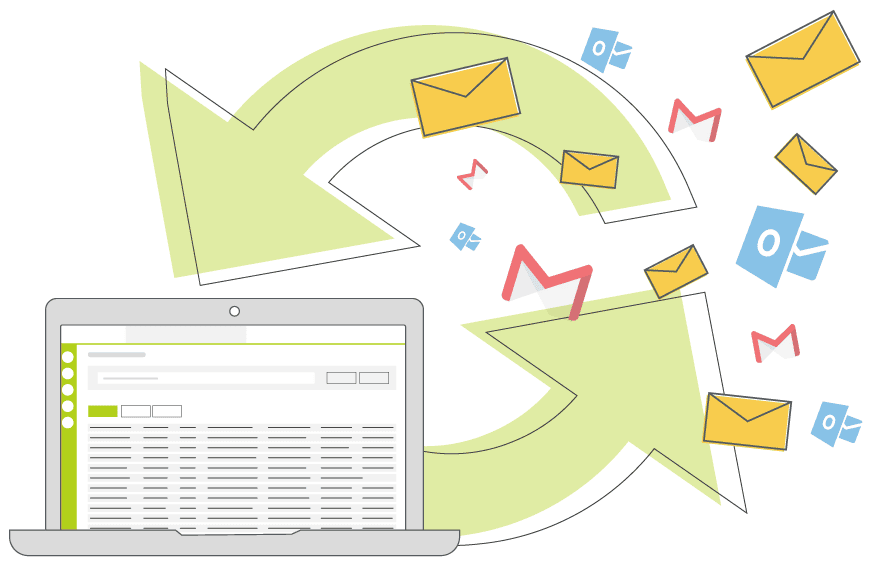
Email integration, in relation to CRM, is making sure that relevant emails between your team and your customers are easily accessible. Ideally, you want these in the same or similar place as the records of your calls and meetings.
By keeping all this communication history in a single place, anyone on your team can get a feel for the recent history with that customer and the temperature of the relationship.
But enough about CRM management. Let’s dive into some of the details of how different email integrations work. What you can do with them. And some of the considerations you’ll need to make.
The Nuts and Bolts of a CRM Email Integration
When you get down to it, there are two main parts of any email integration: inbound and outbound emails.
Inbound emails are the ones you receive from your customers (and suppliers and prospects and anyone really). Outbound emails are the ones that you send out to those same people.
Now, the way these two different kinds of emails are integrated with your CRM system will vary based on what you need.

Don’t just take our word for it
Click to read how other companies have benefited from using OpenCRM. From out-of-the-box implementations to businesses that needed bespoke development to fit their unique approach – we’ve seen it all.
Find out more →Inbound Emails
Simply sending the outbound emails from your system is a bit like listening in on your colleague on the phone with a client. You only get half the conversation.
By capturing inbound emails into your system, all of a sudden, you can easily see the full picture.
In Open CRM (and many other CRM systems), there are two options for integrating your emails: manual and automatic.
Gives you total control over which emails are brought into the system and where they go. Review an email and decide whether to push it to OpenCRM — based on the Sender it already knows which Contact to link to, and it can also link to Projects or Opportunities. It can also sync calendar entries and contacts between Outlook and OpenCRM.
Most customers prefer this fully automated option. All emails sent from your domain are copied into your CRM system and matched with the relevant Contact, Company, or other record. Works regardless of your email client — Gmail, Outlook, it doesn’t matter. This is the real deal for a 360-degree view of the customer.
Email Security & Permissions
There are two things you will need to consider when it comes to security and permissions around the emails in your CRM system. One is more general while the other relates specifically to automatic email integration.
General Email Security
When I talk about email security in this section, what I really mean is user access. You have to ask yourself which of your users should be able to view the emails sent and received by other users in the system.
In Open CRM, you can set this up to exclude all users from seeing each other’s emails or allow them to view only those emails belonging to people within the same team. You could even block some users from viewing any emails at all. It’s all about managing their permissions.
Watch and learn
If you’re looking for further information on how specific features and functionality play out in OpenCRM, why not click to check out our webinars?
Watch now →Automated Email Integration Permissions
I can imagine scenarios where you don’t want certain emails in your CRM at all. These could be personal or sensitive. But if you are using an automated email integration to bring them into your CRM, how do you keep them out?
Well, the first way (at least in Open CRM) is to stop emails from being brought into the system that don’t have a matching record. So, for example, you don’t want that birthday card email that your aunt sent you landing in the CRM. As long as your aunt and your spammer aren’t in the system, these emails don’t have anywhere to live. So they won’t show up in the system at all.
The second way involves customising the actual setup of your email integration with some exclusion rules. Think about emails from your bank manager — you may need this person to have a record in your CRM system. But you don’t want certain correspondence from them brought in. By setting up exclusion rules that ignore emails with certain words in the subject or are sent to particular users, you can be sure that these sensitive emails are kept out of your CRM.
And finally, in OpenCRM you can set up your automatic email integration to add additional security around certain emails based on the flags you add in your email client. For example, if you add the “Private” flag to an email, when it is brought into Open CRM, it will have the security set on that record to be Private. Meaning that other users, regardless of their “normal” permissions around emails, won’t be able to view it.
Additional Email Integration Features
There are two key features of our Pop2OpenCRM email integration that I’d like to mention here.
Automatic Ticket Creation
With Pop2OpenCRM, you can automate the creation of Helpdesk Tickets. This way, all your clients need to do is drop an email to your dedicated support address, and it will create a brand-new Ticket in your system. And you can do it for more than one email address!
Options are available to automate various emails you send in response, tailored to which address your customer contacted — the “ticket open” acknowledgement, a comment update, and a closing email, plus urgent and out-of-hours triggers. These all use formatted templates so tone and branding stay consistent.
Any email sent from that Ticket and the replies to that email are copied into the Ticket history, and can also trigger notifications and status changes.
Related Linking
If you sent an email from a Project or Opportunity (or other record in the system), any replies to that email will be linked to the same Project or Opportunity. This means you can easily maintain a full history of the discussion on a particular topic.
To give you a very real scenario: right at the beginning of a Project, once you have nailed a plan together with your client, you email them a PDF of that Project plan. If you send your email from the Project record itself, when the client responds, their email will get automatically attached to the Project. Within the email tab of the Project, you then have a complete audit trail of in and outbound communications regarding the job you’re working on.
Where this gets really important is when you are juggling a lot of balls with a particular client. If all the correspondence just sat in a giant pile of emails, it would be a nightmare to keep track of. But with Pop2OpenCRM, you get the relevant email thread linked to their own Opportunity.

Let us take you on a tour
You’ve had a look around and are starting to think OpenCRM might be the system for you and your business. Why not chat with one of our team (and ask your burning CRM questions) as they take you on a tour of the system?
Find out more →Outbound Emails
To start, any emails you send from your actual email client can be copied into Open CRM using either of the email integration options above.
But that’s not really the point of this section. This section is going to talk about the tools available in your CRM system that can help you better manage the sending of outbound emails.
From a purely practical sense, this is very straightforward. All you need is a record in your system with a name and an email address, and away you go. This could be a customer, a supplier, a prospect, whoever.
From that record, click the “Email” button, start typing, and when you’re done, click the Send button. Easy.
That email you sent will show up in the history of your interactions with that individual, along with any attachments you decided to include.
Copy Into Sent Folder
When you send out that email, you’ll receive a confirmation in your own email inbox. This serves two purposes. First, it confirms to you that the email has gone out. And second, if you set up some clever rules in your email client, you can have this confirmation email copied into your Sent Items folder.
This way, no matter which email integration you are using, you have the ability to get a picture of the communication you’ve had with this individual, whether you’re in your CRM system or not.
Security and Sender Policy Frameworks (SPF)
Now, when you send your email from your CRM system, you want it to appear as though it is coming from your email address. And in Open CRM, that’s exactly how it works.
But there are some security things you will need to sort out on your own domain, a kind of authorisation. After all, you wouldn’t want just any old piece of software to claim to be you and start sending emails on your behalf.
This is achieved using what is called an SPF record, and it tells spam filters that this is a legitimate piece of correspondence. All you need to do is add this SPF record to your domain and away you go.
It’s a bit of a boring part of email integration, or at least doesn’t have a lot of bells & whistles, but it is vital.
As you can see, there are a lot of elements involved in making an email integration that really goes the extra mile with a CRM system. You as the user have a lot of things to consider, both from a security, but also a general use point of view. If you’d like to talk to one of the team about these options and how Open CRM can help your business, why not start a chat or give us a call?

Ready to bring your emails into one place?
See how OpenCRM’s email integration keeps every conversation in context.
Start your free trial