
First of all, what is a Round Robin? It’s a tool that shares workload equally among Users or Teams — if you have four Users and a batch of 100 new Leads come in, Round Robin means each user gets 25. Round Robin has been around in OpenCRM for a while, but it’s recently had some pretty major changes. Let’s have a look.
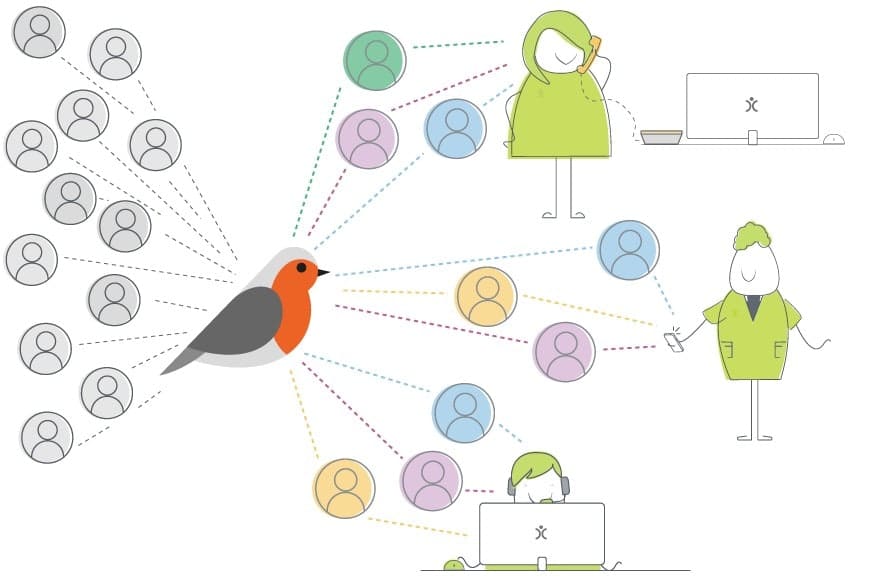
- Round Robin distributes new records evenly across Users, and can exclude anyone on holiday.
- It now works at the Team level rather than the individual User level.
- A new Record Sharing setting controls whether Users within a Team can see and edit each other’s records.
- Multiple Teams can run Round Robin on the same module — each with its own sharing rules.
- Available on Companies, Contacts, HelpDesk and Leads, with no paywall.
CRM Round Robin Explained
Round Robin is an incredibly useful tool that shares workload equally among Users or Teams. If you have four Users and an incoming batch of 100 new Leads, applying Round Robin means each user gets 25 new Lead records assigned to them.
General Round Robin Settings
Enabling Round Robin works exactly as it did before:
- Go to the Settings section of OpenCRM
- Click Additional Settings under the Configuration block
- Scroll down to Round Robin Settings
Round Robin can be applied to Companies, Contacts, HelpDesk, and Leads, and works whenever a new record is created — manually, via an import, or through workflow.
You can also exclude users on holiday from the rotation, so records don’t sit stagnant while someone’s away — they’re simply distributed to the rest of the team. This requires Users to have linked Personnel records.
Adding Users to Round Robin
This is where the first real change appears. Previously, Users were added to Round Robin based on their individual user record. Now, it’s handled at the Team level — Users are added to Teams from their record or the Team management page, found under User Management in Settings.
That means at least one Team will contain your “Round Robiners” — though there could be two, which we’ll get to shortly. Turning on Round Robin for a Team reveals two new columns: Record Sharing and Round Robin.
Setting up Round Robin itself is straightforward:
- Find the Team you want to apply Round Robin to
- Click Edit
- Choose the module Round Robin should activate on
- Tick the box
- Hit save
Round Robin will now begin doling out the workload, alternating among team members.
Record Sharing
There’s an additional setting on the Team screen called Record Sharing. Once ticked, it allows records to be shared within that Team, depending on your permissions model.
First, check which of your Default Organisation Sharing Access (DOSA) settings your system currently uses — these control which Users can view, create/edit, or delete records across different modules, including whether Users in the same Team can see or interact with each other’s records.
This is useful when, say, a sales team needs to work in unison on the same customers — seeing and editing shared records — without Users outside that team being able to see, edit or delete them.
Using Multiple Teams
What if you have two Sales Teams, but only one of them can be trusted to share nicely? The new Record Sharing controls let Team A have sharing switched on, so they can collaborate freely, while Team B has it switched off — your general permissions model stays exactly as it was, but that smaller group won’t see or interact with each other’s records.
Say your company receives Leads from all over the country. You could set up multiple Teams within the Leads module to use Round Robin — Team A handling Leads from the North, Team B from the South. Team A (the nice ones) can view and edit each other’s records; Team B has Record Sharing disabled, so there’s no sharing the Leads from the South.
This can be enabled and fine-tuned for any module that uses Round Robin — Leads, Contacts, Companies, and HelpDesk. And as always, it’s included as standard, with no paywall in sight.

Ready to take the workload off your team?
See how Round Robin fits into your OpenCRM setup.
Start your free trial